Online Markdown editor with a safe private preview
Plain-text Markdown editing and preview on demand. Notes are stored locally in your browser.
Any Typehall note can be a Markdown note. You keep editing plain text — headings, bold, lists, quotes, code, tables, task lists — and switch to Preview to see it rendered. Plain text remains the default; Markdown is there when you choose it. Convert a note from its Note actions menu; converting never touches your text, it only changes how Typehall renders it. New to Markdown? Start with the practical course.
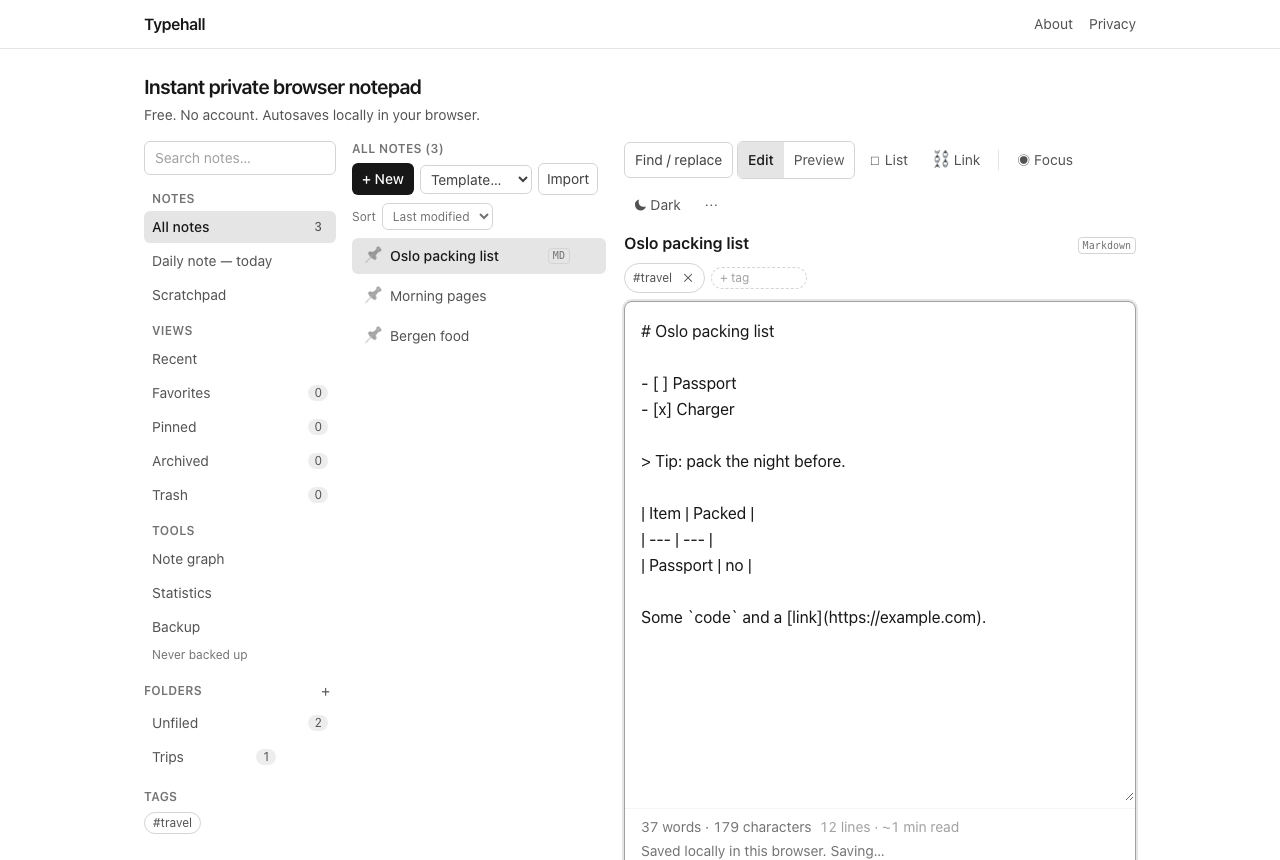
Edit, Preview, and Split
Every Markdown note offers three views in the toolbar. Edit is the source text: this is where you write and change content. Preview renders it — headings, lists, tables, checklists, syntax-highlighted code, Mermaid diagrams, LaTeX math, links, and the rest of supported Markdown. Split shows both at once: type on one side, read the rendered result on the other. On wide screens the two sit side by side; on narrower screens the preview stacks below the editor. For a wider working area, combine Split with Focus mode, which hides the library and leaves more room for the note.
When Markdown earns its keep
Markdown pays off the moment a note needs structure a reader can scan: a meeting note with sections, a how-to with steps, a reading note with quotes, a comparison with a table. For a two-line reminder or a pasted tracking number, plain text is faster and there is no reason to convert. A good rule: if you would reach for bold or a bulleted list, Markdown is the right mode; if not, stay plain.
Edit and Preview
The editor toolbar switches a Markdown note between Edit and Preview. Edit is always the source of truth — every keystroke autosaves the plain text locally, exactly like any other note. Preview renders that text on demand and never executes anything: scripts, raw HTML, style blocks, frames, forms, and audio/video tags are stripped, event handler attributes are removed, and only plain http/https/mailto links survive (they open in a new tab with safe attributes).
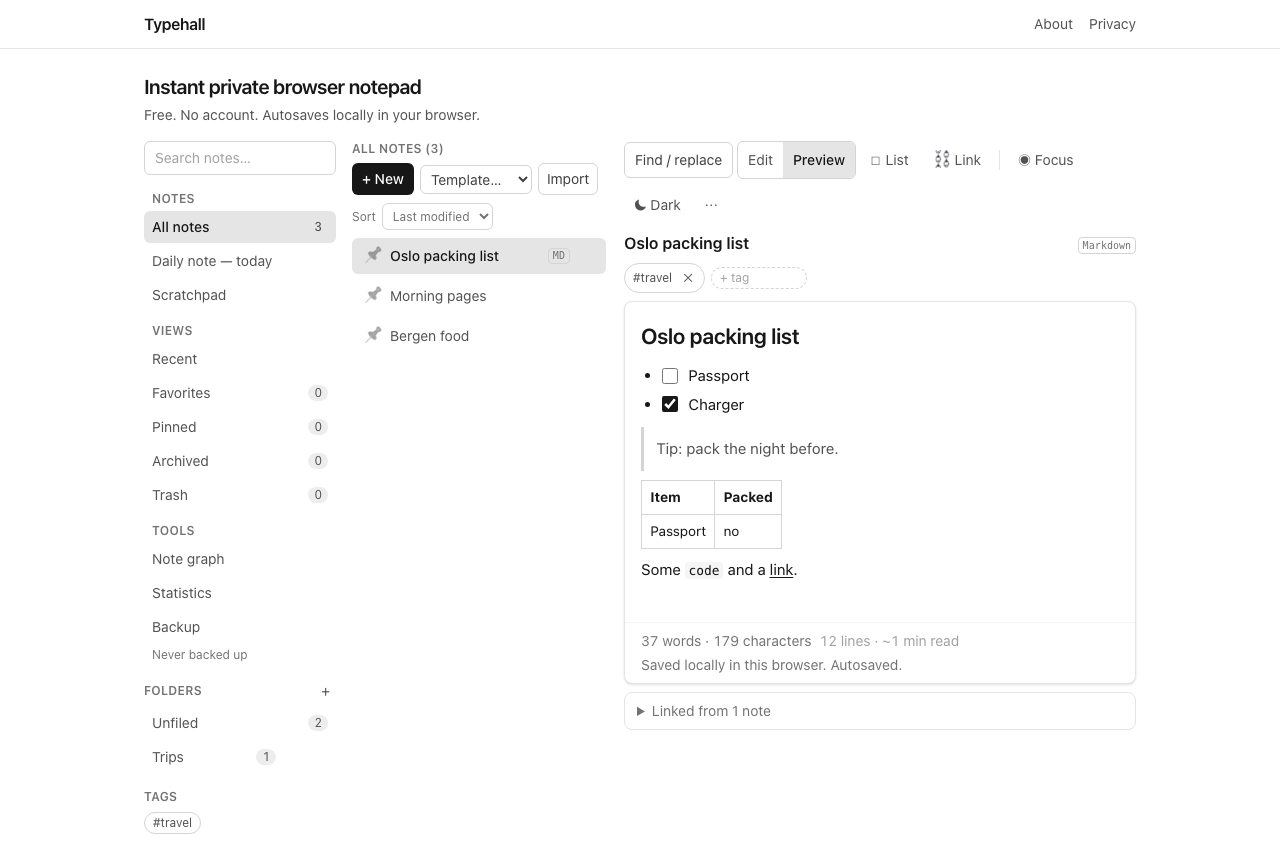
What renders, concretely
- Headings, bold, italic, strikethrough, blockquotes, and horizontal rules.
- Bulleted and numbered lists, including nested lists.
- Task lists (
- [ ]) with checkboxes you can tick in Preview — and in the editor, the List button toggles them in place. - Fenced code blocks with syntax highlighting when you name a language (
```python,```swift,```sql…). Unnamed or unknown languages render as plain code. - Mermaid diagrams from
```mermaidfences — rendered locally, offline, with the source untouched. - Math with
$…$inline and$$…$$display notation — rendered locally; plain dollar amounts like $5 stay literal. - Inline
code, tables, links. - Single line breaks render as line breaks, so wrapped prose looks the way you typed it.
What never renders
- Remote images are stripped — previewing a note never loads external URLs. Images you paste or drop into a note are stored locally in your browser and do render.
- Raw HTML, scripts, styles, frames, forms, and media embeds are removed by the sanitizer.
- Only
http,https, andmailtolinks are kept.
This is deliberate: a preview that executed arbitrary markup would be a strange thing to put next to a privacy promise.
Reviewing Markdown from an AI assistant
A practical workflow Typehall is good at: ask ChatGPT, Claude, Codex, or another agent for Markdown, then paste or import the result into a note and review it here — on your terms, in your browser, with nothing uploaded. AI output is often structurally fine and factually approximate; Typehall gives you a quiet local place to read it rendered, fix the details, keep the corrected version, and export it again as .md. There is no AI integration and no account: the agent writes Markdown elsewhere, Typehall renders and keeps it.
Technical drafts benefit most. A typical AI-generated plan renders end to end: the code fence gets highlighting, the rollout diagram draws, the formula typesets.
## Rollout

```python
def total(xs):
    return sum(xs)
```

```mermaid
flowchart TD
  A[Draft] --> B[Review]
  B --> C[Done]
```

Energy relation $E = mc^2$ holds inline.
Start from the Implementation plan template when the draft needs sections for goal, requirements, architecture, steps, risks, and validation — with or without AI help.
Moving Markdown in and out
Import .md files directly (they open in Markdown mode, titled after the filename), export any Markdown note as .md, and include notes in full workspace backups. No conversion service is involved — it all happens in your browser. For sharing with people who do not use Markdown, export the same note as .html or print it to PDF; the export reuses the exact preview pipeline, so what you saw is what they get — see how to export Markdown notes.
Technical Markdown, one cluster
Three guides cover the technical side in depth: reviewing AI-generated Markdown, Mermaid diagrams in notes, and LaTeX math in notes. Because every note stays on your device, the same rendering works offline after the first visit — and the local-first model explains what that costs and what it buys.
Open the notepad and convert any note to Markdown from its Note actions menu.